
You have wanted out of your booking software for months. The fees crept up, the app got slower, a feature you relied on moved behind a higher tier. But every time you think about leaving, the same cold thought stops you: your entire client list lives in there. Ten years of regulars, their numbers, their formulas, their birthdays. Switch, and you picture all of it evaporating. So you stay, and keep paying, held hostage by your own data.
Here is the answer first. You will not lose your clients when you switch, as long as you move in the right order: get your data out before you cancel anything, clean it, rebuild the few things that never transfer, re-collect texting consent, and run both systems in parallel until the new one is proven. The failure is almost never the software. It is switching in a panic and skipping the parts that never migrate on their own. This is the six-stage path, with the exact messages to send so not one client slips through the gap.
Key takeaways (the TL;DR)
- Your client list is the asset. Protect it first. Export a full contact file before you touch anything else, while you still have access.
- Order is everything. Never cancel the old software until the new one is live, loaded and tested. Cancelling first is how people lose data.
- Some things never migrate. Saved cards, recurring appointments, package and gift-card balances, and texting consent do not transfer. Rebuild them by hand.
- Consent does not travel. Switch software or numbers and you re-register for A2P 10DLC and re-collect marketing opt-in, or your reminders stop getting delivered.
- Run both in parallel. A one-to-two-week overlap, new system live and old one read-only, catches the gaps before they cost a booking.
- Tell clients once, clearly, with a link. A client who cannot find the new booking page is the only client you actually lose.
Table of contents
- What a switch really costs
- Stage 1: Inventory what you own
- Stage 2: Export your client list first
- Stage 3: Clean and map the data
- Stage 4: Rebuild what never transfers
- Stage 5: Re-collect consent and re-register
- Stage 6: Run parallel, then cut over
- Three scenarios: solo, five, twelve chairs
- The legal fine print
- Objections
- FAQ
What a switch really costs
The fear is that switching means starting over from zero. It does not. What you risk losing is narrow and specific, and every item has a workaround.
Guard the list hardest, because this is a trade built on self-employment. Barbers, hairstylists and cosmetologists made up about 651,200 jobs in May 2024 at a median wage of $35,420 a year, with one of the highest self-employment rates of any occupation, far above the roughly six percent average across all jobs, per the Bureau of Labor Statistics. In most shops, the person switching software owns the book. Those clients are yours, not the software’s.
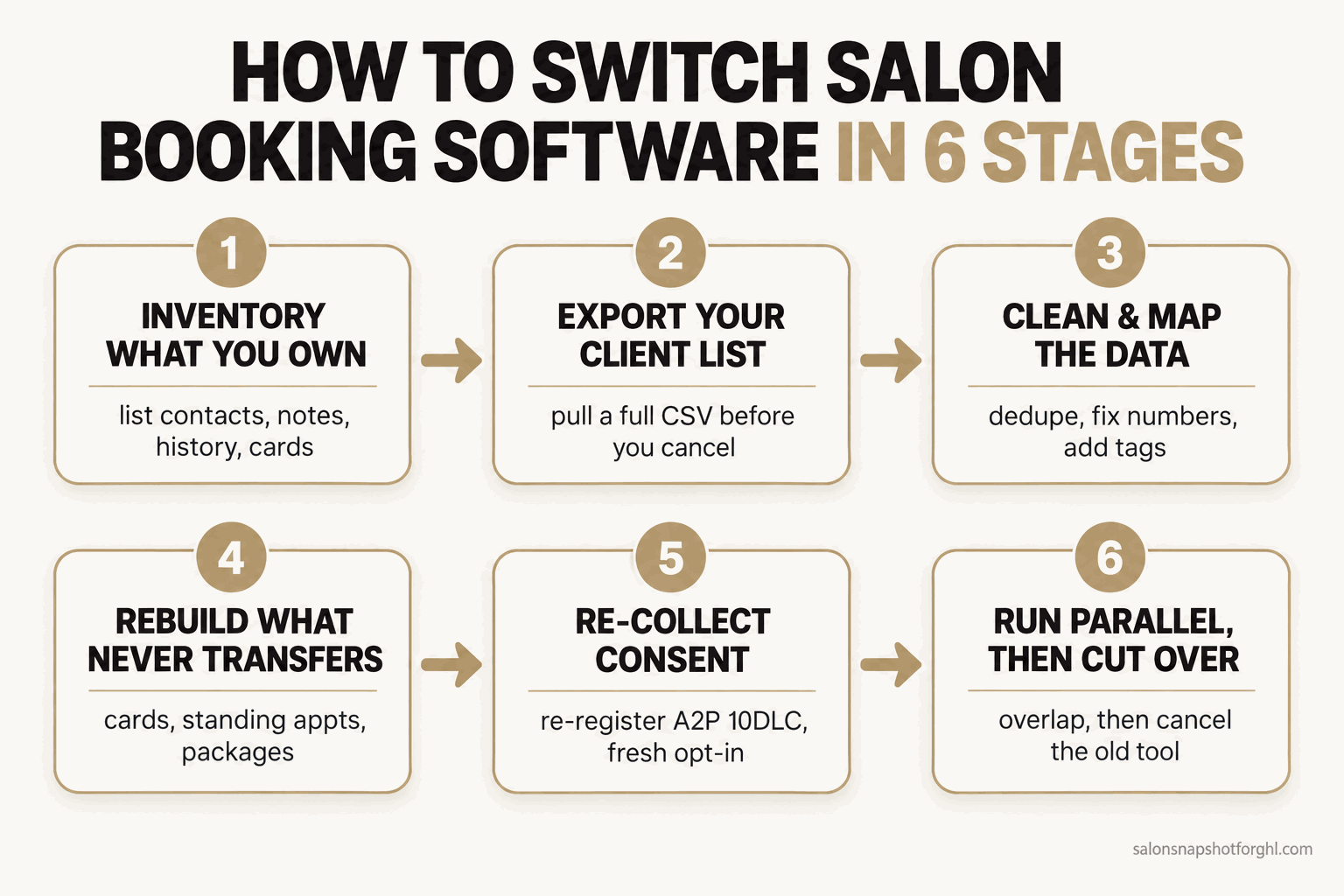
Do them in order and nobody outside your shop notices anything except a nicer booking page.
Stage 1: Inventory what you own
Before you export a single file, list everything living inside your current software. Eight categories:
- Client contacts: names, numbers, emails, birthdays.
- Notes and formulas: colour formulas, allergies, preferences a new stylist cannot guess.
- Appointment history: who is due and who has lapsed.
- Future booked appointments: everything on the calendar past your switch date.
- Recurring or standing appointments: clients in a repeating slot.
- Packages, memberships and gift-card balances: prepaid money you owe as services.
- Saved cards on file: for no-show fees and fast checkout.
- Reviews and reputation: usually on Google, not the software.
Set it up. Open a spreadsheet with those eight rows and, for each, note how many records you have and whether your tool lets you export it. That second column is the whole game (Stage 2).
How it breaks. The categories people forget are notes and standing appointments, and a contact export with no colour formulas hands your new stylist a phone number and nothing else. Write them down now, or find out when a loyal client’s every-third-Tuesday slot silently vanishes.
Stage 2: Export your client list first
This is the load-bearing stage: everything else can be rebuilt, but a client list you cannot get out cannot. How easy the export is depends on who you are leaving.
Platforms fall into two camps. Some let you pull a clean client CSV yourself in a few clicks. Others make you ask: you get the contacts, but the appointment history behind them comes only through a support request. And almost everywhere, a contact export is not an appointment export. Know which camp yours is in before you plan the timeline.
Can you export your client list? (verify on your own account first)
| Plan | Square Appointments | Vagaro | Fresha | GlossGenius |
|---|---|---|---|---|
| Price | Self-serve CSV | Self-serve CSV | Self-serve + support | Request from support |
| Feature 1 | Export customer directory to CSV yourself | Export customer list to Excel or CSV | Client list exports to CSV (owner permission) | No fully self-serve CSV export |
| Feature 2 | Contacts only, not appointment history | Via Reports then Customers | Saved cards cannot export (PCI) | You contact GlossGenius to request your data |
| Feature 3 | Owner controls the export | Owner-only export | Full appointment history needs a support request | Easy to import in, less so out |
| Feature 4 | No fee to leave | No fee to leave | — | — |
Sources: Square, Vagaro, Fresha and GlossGenius help docs. Capability varies by plan, so confirm on your own account before switching.
Set it up. Find the export (usually under Clients, Customers, Reports or Settings) and pull the largest, most complete file it offers. Export a second copy a week later to catch anyone booked in between, and save both somewhere permanent that is not the old software. This file is your insurance.
How it breaks. Three ways. An export that silently drops fields, so open the CSV and confirm notes, emails and birthdays came through, not just names and numbers. Assuming the contact file is everything: Square, for one, exports your customer directory but not your appointment scheduling, so pull history separately. And worst, cancelling before you export, which can lock you out of the very data you are saving. Export first, always.
Stage 3: Clean and map the data
A raw export is messy. Clean it once before it goes near the new system, because a duplicate or broken number becomes a duplicate reminder or a failed text.
Set it up. Open the CSV and do four passes:
- Dedupe. The same client under a maiden and married name, or a typo’d email. Merge them.
- Standardise phone numbers. Reminders fail on inconsistent formats, so get every number into a clean format your tool accepts, usually with a leading country code.
- Fix the fields. Line your columns up with what the new system expects: first name, last name, mobile, email, notes. Every import tool asks for this “mapping.”
- Tag before you import. Mark who is an active regular, who has lapsed, and who is a standing client. You will use these tags on day one.
How it breaks. Importing dirty data is the most common self-inflicted wound. Duplicates mean two of every reminder, the fastest way to earn a STOP. Spend the hour. If your new system is a full CRM with workflow automation, the tags you set here drive who gets which message.
Stage 4: Rebuild what never transfers
Even a perfect client export leaves four things behind. Two, saved cards and texting consent, genuinely cannot move between platforms; the other two rarely survive an import. Rebuild each by hand.
Saved cards on file. The big one. Card details are held by your payment processor under strict security rules and do not transfer to a new processor. Every client with a card on file re-enters it in the new system. That is not a bug, it is PCI security at work. The fix is a friendly re-add message at their next booking, folded into the Stage 6 announcement.
Recurring and standing appointments. Your export lists appointments, but the recurring rule behind them almost never comes across, so rebuild each standing slot by hand (this is why you tagged them in Stage 3). For what that backbone is worth, see filling dead midweek chairs.
Packages, memberships and gift-card balances. Prepaid money you owe as services. Carry them across by hand: export the outstanding balances, then create the matching credit or membership for each client. Miss one and you have an angry regular whose ten-cut package just disappeared.
Texting consent. The right to send someone an automated text does not move with their number. That is its own stage, next.
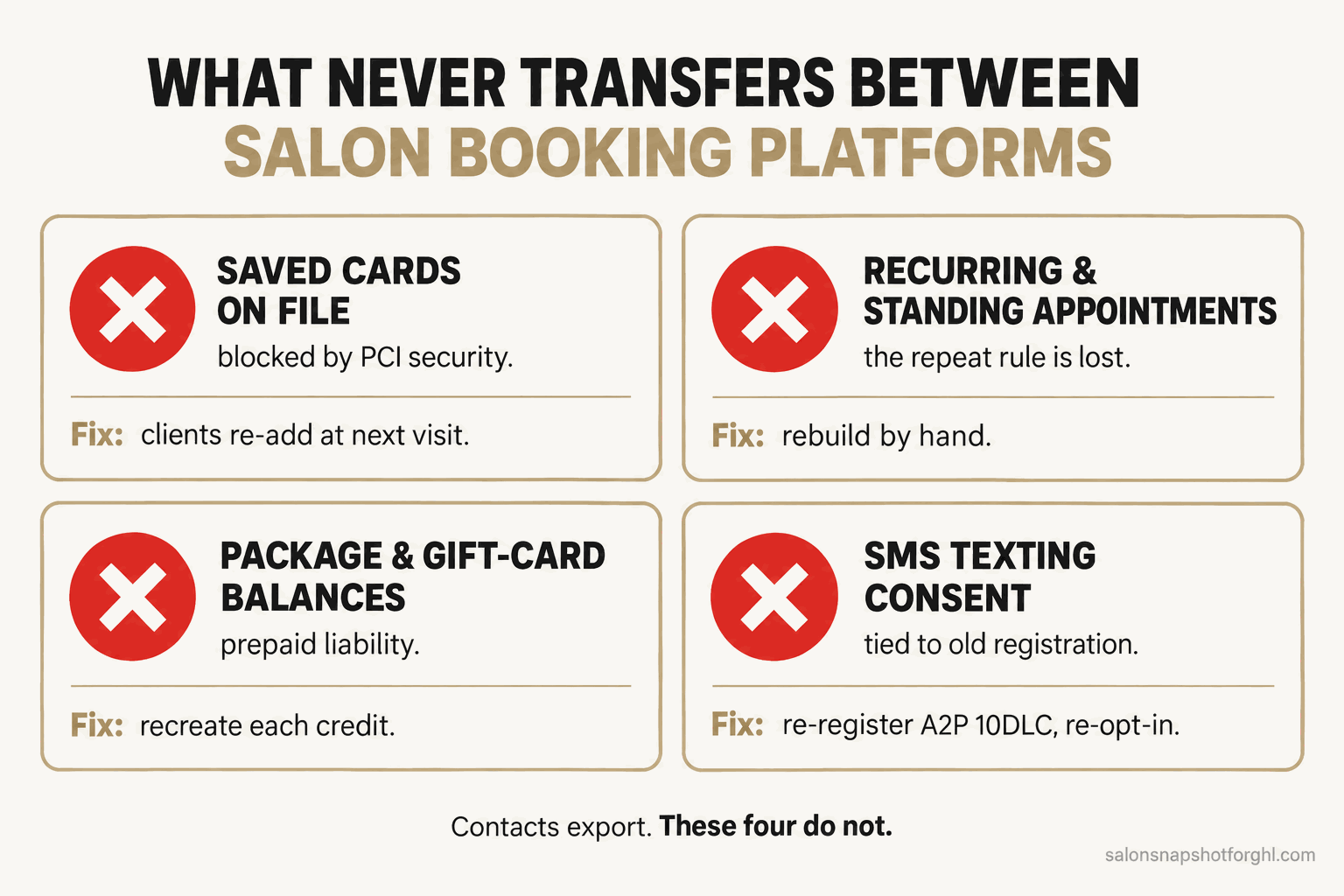
How it breaks. Owners assume “the data moved” means everything moved, then discover on go-live that no card is on file for anyone, so the first no-show cannot be charged. Build a checklist of these four and clear it before you cut over.
Stage 5: Re-collect consent and re-register
Salons run on text: reminders, rebooking nudges, waitlist offers. Getting this wrong does not just risk a fine, it silently kills your delivery. None of this is legal advice; confirm with a professional.
Business texting runs through A2P 10DLC. Under full carrier enforcement, business text traffic from a standard 10-digit US number has to be registered through A2P 10DLC or it does not get delivered (FCC). That registration is tied to your brand and number in a specific platform, so when you switch tools or numbers, you register again. Start early: approval can take days.
Consent does not transfer with the export. The TCPA requires clear consent before automated messages, and prior express written consent for marketing texts. That consent lived in your old system, at your old number, and does not carry over, so re-collect it: everyone re-enters through a fresh opt-in at their next booking. Keep reminder and marketing consent separate, and honour STOP promptly, since FCC rules effective April 2025 require opt-outs within ten business days.
Set it up. Register your new number or brand for A2P 10DLC the moment your account is open, and wire your booking form to capture opt-in at booking. Our SMS compliance guide for salons walks the registration path, and the SMS automation module keeps the sending side inside the rules.
How it breaks. The nightmare: you migrate, fire your first reminder blast, and it either bounces off unregistered carriers or lands as an unconsented message to your whole list. Register before you send, and re-collect consent rather than assume it came along.
Stage 6: Run parallel, then cut over
The biggest mistake is flipping it like a light switch: cancel the old, open the new, cross your fingers. Instead, run both in parallel a week or two, new system fully live, old one read-only. That overlap catches every gap before a client does.
Set it up, in order:
- Load and test the new system with your cleaned import, rebuilt standing appointments and registered texting. Book a test appointment, trigger a reminder, run a fake no-show charge.
- Move your booking link everywhere it lives: Instagram bio, Google Business Profile, Facebook, website, link-in-bio. A stale link on Google feeds new clients into the tool you are abandoning, and our post on turning Instagram DMs into bookings covers the social handoff.
- Announce to clients once, clearly (copy below).
- Keep the old system read-only a week or two so you can look up anything the export missed.
- Then cancel, only when the new system has run a full week clean and your final export is saved.
Steal this copy. The client announcement, by text:
“Hi [Name], quick heads up: we’ve upgraded our booking. Book your next visit here from now on: [new link]. Your history is all saved. See you soon! Reply STOP to opt out.”
The re-permission text, sent early from the new system:
“Hi [Name], it’s [Salon]. We’ve switched to a new system and want to keep sending your appointment reminders and offers. Reply YES to stay in the loop, or STOP to opt out anytime.”
And a mid-package reassurance: “Hi [Name], good news: your remaining [X] visits are safe and already loaded in our new system. Nothing changes except a new link: [new link].” For the confused caller, the front desk says: “We moved to a better booking system. Your history and appointments are all here. The new link is [link], and I can text it to you now. If you had a card saved, I’ll help you re-add it, takes a second.”
How it breaks. Cutting over too fast, and forgetting the link. Cancel on day one and you have no reference when a client says “but I had an appointment on the 14th.” Leave the old link live on Google or Instagram and you keep feeding the dead system. Change every link the same day you announce.
Three scenarios: solo, five, twelve chairs
The six stages are the same for everyone. What changes is where the weight lands.
The solo booth renter or suite operator. The list is small, entirely yours, and easy to export and hand-clean in an afternoon. Your risk is time, not volume, so do it on a slow week. Get the export clean and personally text regulars the new link. With few saved cards, Stage 4 is light. It should never feel hard to walk out of software in a weekend.
The five-chair commission or booth-rent salon. Now ownership gets political. If stylists are booth renters, whose clients are whose, and who controls the export? Sort that first, because a renter who feels their list is being moved without them can walk and take clients along. Run the export as the account owner, keep per-stylist tags, and tell your team before your clients. On the classification question underneath, our post on classifying every chair in your salon comes first.
The twelve-chair or multi-location shop. Migration is a project: the largest data volume, the most saved cards, memberships carrying prepaid liability, and staff who need training. Stage the cutover by location or by week, keep the old system read-only longer, and assign one person to own the checklist. This is also where owning booking and automation as one system, instead of paying per seat and per text across a dozen chairs, changes the math; our salon software cost breakdown runs those numbers.
The legal fine print
None of this is legal advice; confirm with a professional. Two things beyond Stage 5 are worth a line. Email blasts follow the FTC’s CAN-SPAM rules: a working unsubscribe and your physical address in the footer. And many providers must return your data on request, so if export is blocked, ask in writing. If you rent chairs in California, worker classification under the state’s Borello test is its own matter, covered in classifying every chair in your salon.
Objections
“What if my current software won’t let me export?” Request your data in writing, and meanwhile rebuild the list from sources you control: your phone, your payment processor’s records, past invoices and email. A locked export delays a switch, it does not prevent one.
“Won’t switching confuse my clients and cost me bookings?” Only if you skip Stage 6. Clients do not care which software runs behind the scenes; they care that the link works and their history is intact. Announce once, move every link the same day, keep the old system readable a while, and the switch is invisible.
“Do I need to be technical?” No. The hardest part is a spreadsheet cleanup and careful ordering, both patience, not code. If you would rather not run the parallel period and the registration yourself, a done-for-you GoHighLevel setup handles the import, workflows and A2P registration. (That is our GoHighLevel partner link, and we may earn a commission.)
FAQ
How do I switch salon booking software without losing my client list?
Export a full contact file before you cancel anything, clean and deduplicate it, then import it. Rebuild by hand what never transfers (saved cards, recurring appointments, package balances and texting consent), re-register for A2P 10DLC, and run both systems in parallel for one to two weeks before you cancel.
Can I export my client list from Fresha, Vagaro or Square?
It varies. Square Appointments and Vagaro let the owner export a customer CSV directly (Square's is contacts only, not appointments). Fresha exports the client list to CSV self-serve, but saved cards cannot leave and full appointment history needs a support request. GlossGenius has no fully self-serve export, so you contact them for your data.
Will I lose my Google reviews if I change booking software?
No. Your reviews live on your Google Business Profile, not the booking software, so switching does not affect them. You only reconnect the automation that requests reviews after a visit.
Do saved cards on file transfer when I switch salon software?
Almost never. Card details are vaulted by your payment processor under PCI rules and do not move to a new processor. Clients re-enter a card in the new system, usually at their next booking.
Does my clients' texting consent carry over to new software?
No. The right to send automated texts is tied to your registration in the old system, not the number. Switch tools or numbers and you re-register for A2P 10DLC and re-collect opt-in for marketing texts under the TCPA. Send a re-permission text early and honour STOP. Not legal advice.
Back to that cold thought
Picture the switch done. Your regulars book through a faster page you actually like. Their history, formulas and birthdays came across, the card-on-file clients re-added without a fuss, the standing appointments are rebuilt, and your reminders land because you registered first. Nobody got lost. From your clients’ side, the only change is a nicer link.
None of that took luck, just moving in order. The software was never holding your clients, only your data. Now you have it back. Own it in a system you control, and you never feel trapped by a booking tool again.
Sources
- BLS Occupational Outlook Handbook: Barbers, Hairstylists, and Cosmetologists
- Client-export help docs: Square, Vagaro, Fresha, GlossGenius
- Texting compliance: FCC TCPA framework, FCC opt-out rules fact sheet, FTC CAN-SPAM guide
- Card-on-file security: PCI Security Standards Council
- Google reviews ownership: Google Business Profile Help